# Socks5 Proxy Via AutoSSH 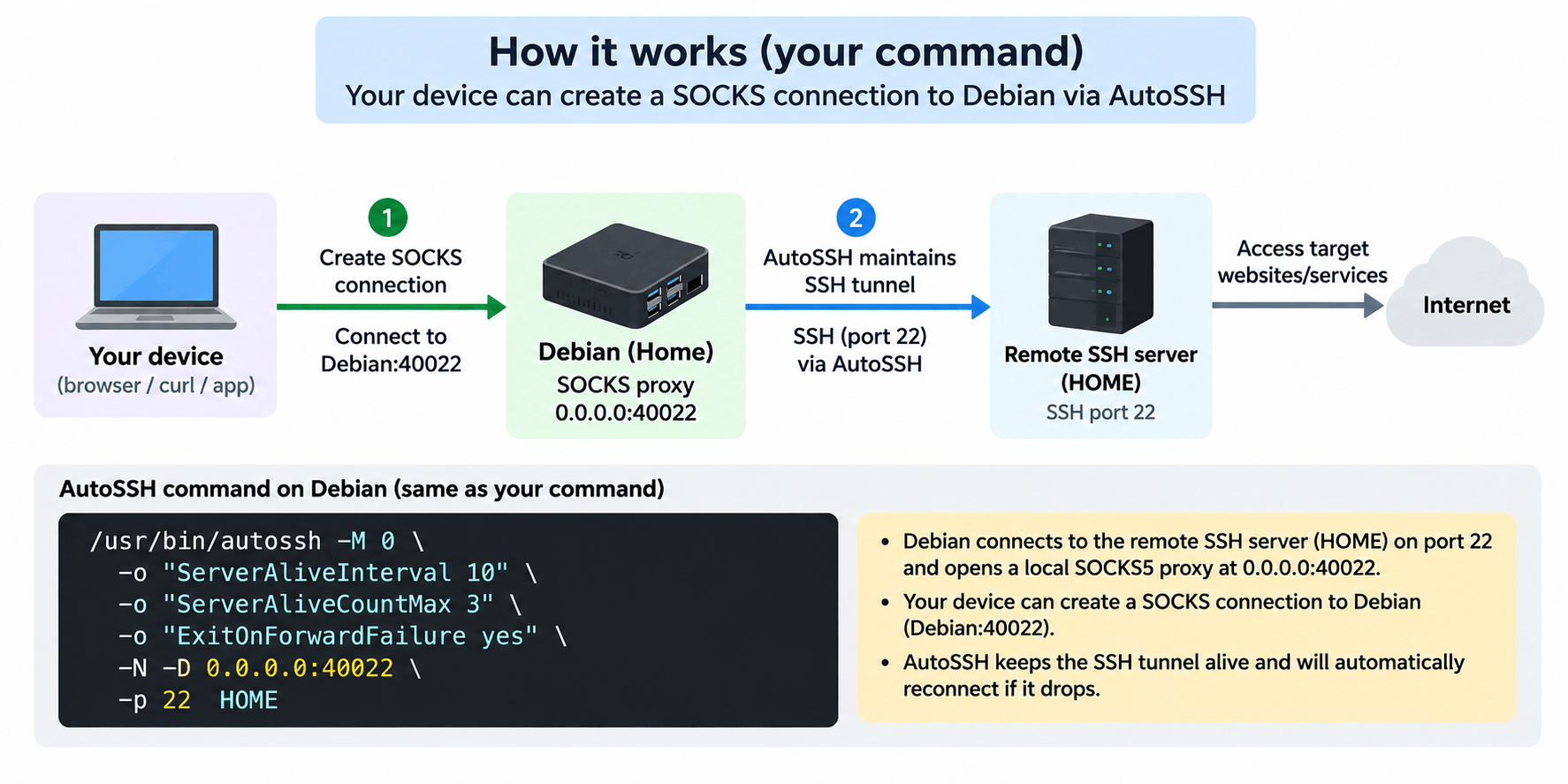 Scenario: The personal machine can connect to a machine on the LAN via SSH, but we also want to access other services within the LAN. If we don't use it often, we can just use SSH manually. ```bash # -M 0 => means disable the monitoring # -N => means no cmd needs to be executed, just setup the tunnel # ServerAliveInterval 10 => menas health check 10s/time # ServerAliveCountMax 3 => means health chekc max time # ExitOnForwardFailure yes => means if cannot get the port, exit # -D 0.0.0.0:40022 => the local socket port # -p 40022 => the remote ssh port # HOME => the remote hostname ssh -o "ServerAliveInterval=10" -o "ServerAliveCountMax=3" -o "ExitOnForwardFailure=yes" -N -D 0.0.0.0:40022 -p 22 HOME ``` If we wanna manage this SSH tunnel with `systemctl`, we can use autossh to keep the connection alive. ```bash sudo apt install autossh sudo vi /etc/systemd/system/autossh.service sudo systemctl enable --now autossh ``` `/etc/systemd/system/autossh.service` content ```ini [Unit] Description=AutoSSH SOCKS5 Proxy After=network-online.target Wants=network-online.target [Service] Type=simple User=debian ExecStart=/usr/bin/autossh -M 0 -o "ServerAliveInterval 10" -o "ServerAliveCountMax 3" -o "ExitOnForwardFailure yes" -ND 0.0.0.0:40022 -p 22 HOME Restart=always RestartSec=5 [Install] WantedBy=multi-user.target ```` after that, we can connect the service via socket5 ```bash curl -x socks5://127.0.0.1:40022 192.168.11.11 ``` Loading... # Socks5 Proxy Via AutoSSH  Scenario: The personal machine can connect to a machine on the LAN via SSH, but we also want to access other services within the LAN. If we don't use it often, we can just use SSH manually. ```bash # -M 0 => means disable the monitoring # -N => means no cmd needs to be executed, just setup the tunnel # ServerAliveInterval 10 => menas health check 10s/time # ServerAliveCountMax 3 => means health chekc max time # ExitOnForwardFailure yes => means if cannot get the port, exit # -D 0.0.0.0:40022 => the local socket port # -p 40022 => the remote ssh port # HOME => the remote hostname ssh -o "ServerAliveInterval=10" -o "ServerAliveCountMax=3" -o "ExitOnForwardFailure=yes" -N -D 0.0.0.0:40022 -p 22 HOME ``` If we wanna manage this SSH tunnel with `systemctl`, we can use autossh to keep the connection alive. ```bash sudo apt install autossh sudo vi /etc/systemd/system/autossh.service sudo systemctl enable --now autossh ``` `/etc/systemd/system/autossh.service` content ```ini [Unit] Description=AutoSSH SOCKS5 Proxy After=network-online.target Wants=network-online.target [Service] Type=simple User=debian ExecStart=/usr/bin/autossh -M 0 -o "ServerAliveInterval 10" -o "ServerAliveCountMax 3" -o "ExitOnForwardFailure yes" -ND 0.0.0.0:40022 -p 22 HOME Restart=always RestartSec=5 [Install] WantedBy=multi-user.target ```` after that, we can connect the service via socket5 ```bash curl -x socks5://127.0.0.1:40022 192.168.11.11 ``` © Reprint prohibited Support Appreciate the author AliPayWeChat Like 如果觉得我的文章对你有用,请随意赞赏